Getting started
Download, sign in, and walk onto a course — Jarvi does the rest.
- Open Golf Jarvi and sign in with Apple, Google or email.
- Your 14-day free trial starts automatically — every feature, no card needed up front.
- On the Round tab, pick your course (Jarvi maps 13,000+ US courses). It resumes an in-progress round if you've already started one.
- Head to the first tee. Scoring works even without a signal — GPS and the caddy kick in once you're outside.
Talk to Jarvi — the voice caddy
The glass orb on the Caddy screen is your caddy. Tap it and just talk — no menus.
- Tap the orb / mic and speak. Jarvi listens, thinks, then answers out loud.
- Ask anything a caddy would know:
"What club?""What's my wind?""What's my score?""Read this putt""What's my strategy on this hole?"
- Or tap a quick chip under the orb — Clubs, Hole strategy, Wind speed, My score.
- Club calls use the plays-like number (wind + elevation + temperature) and pick from your bag — and the orb flashes gold when you go under par.
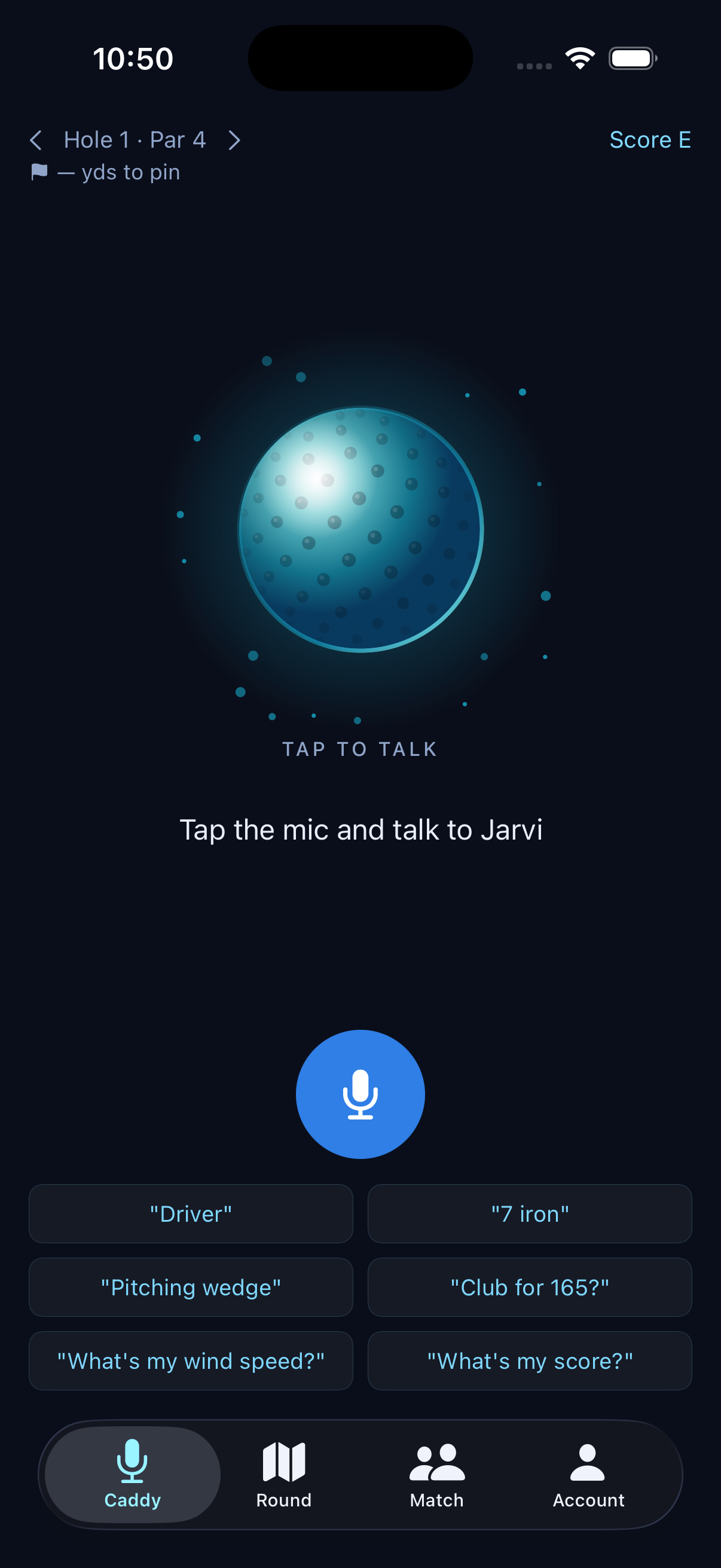
The Caddy screen
"Hey Jarvi" — hands-free
Keep both hands on the club. Turn on the wake word and Jarvi listens for its name.
- Go to Settings and turn on "Hey Jarvi" wake word (it's off by default).
- On the Caddy screen you'll see "Say 'Hey Jarvi'". Just say it, then ask your question — no tapping.
- It listens on-device for privacy and uses a little extra battery while active.
Tag your clubs (shot tracking)
Tagging the club you hit does three things at once — counts the stroke, marks your GPS spot, and measures your last shot's carry.
- When you're about to hit, tell Jarvi the club — "driver""7 iron""pitching wedge" — or tap it in the Clubs dropdown.
- Jarvi logs your position and, once you tag the next club, reports the carry: "Your 7-iron carried 152."
- Over a few rounds it learns your real distances and starts clubbing you off them instead of the number stamped on the iron.
The Round map & three hole views
Every hole is oriented the way you play it — tee at the bottom, green at the top — with live distance and a recommended club.
- The Round tab shows the hole with yards to the pin and a recommended club tucked under your score.
- Tap the corner icon to cycle the view: Satellite → Game (clean 2D render) → Flyover (cinematic 3D). Set a default in Settings → Hole view.
- Tap the expand icon to fill the screen — the scorecard collapses to just the hole you're on.
- Tap anywhere on the map to drop an aim target and read the carry to it.
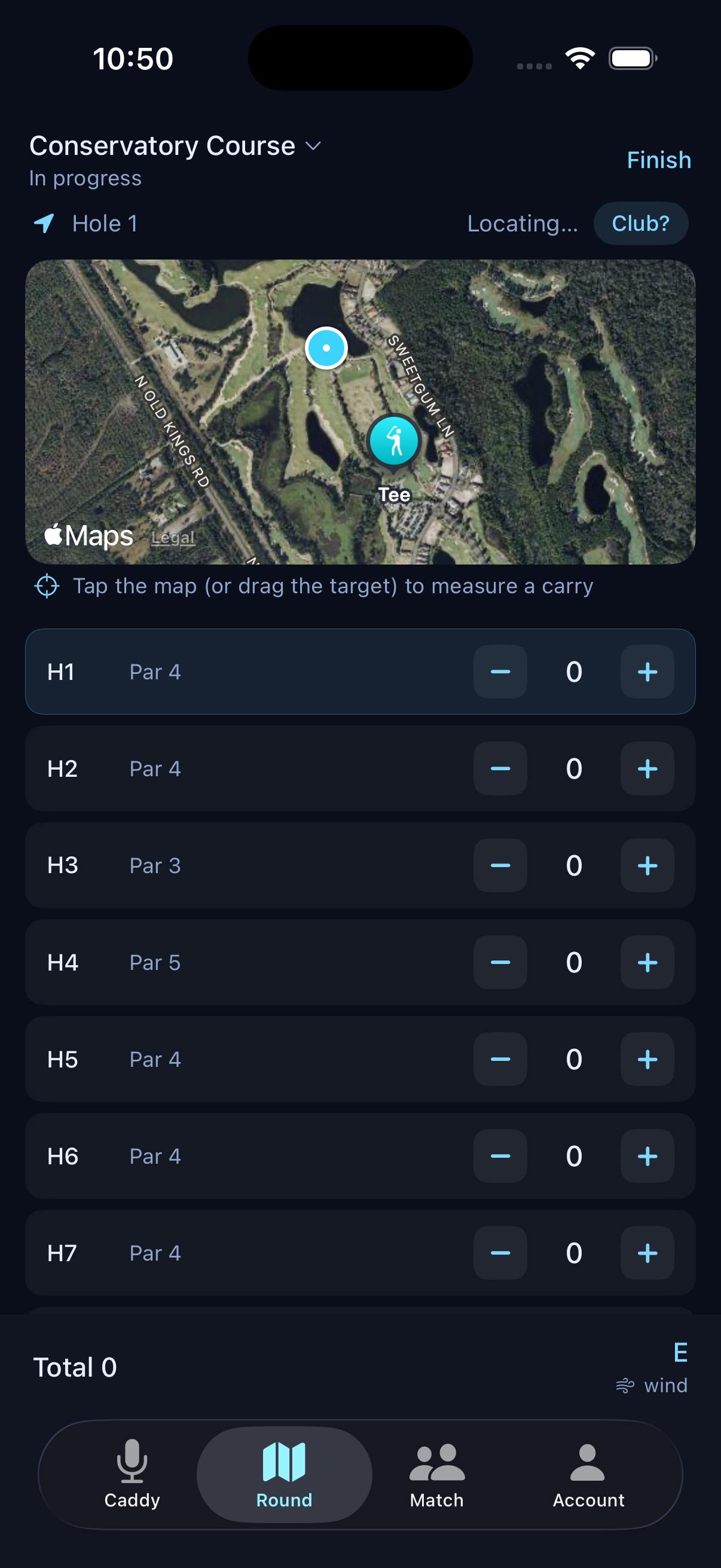
Satellite view
Game view — shapes + shot tracer
3D flyover — ball-flight arcs
Shot tracer
Replay exactly how you played the hole.
- Tag your clubs as you go (above) so each shot is GPS-measured.
- Switch to the Game or Flyover view — your shots are traced on the hole with a landing dot and number.
- Walk the hole back, see where each one finished, and learn what to do differently.
Swing & putting coach
Jarvi reads a short video and gives the one thing worth fixing — no analysis paralysis.
- From the Caddy screen, open Swing coach or Putting coach.
- Film a swing or stroke (or pick a clip from your library) — a steady few-second clip is plenty.
- Jarvi reviews it on video and speaks one strength and the top fix to work on.
Your bag
Jarvi starts you with a standard set of 14 clubs and tunes itself to your game.
- Open Your bag to rename clubs and set real carry distances with the +/- steppers.
- Add or remove clubs to match what you actually carry.
- You don't have to be perfect — tracked shots refine the numbers automatically over time.
Settings
Tune how Jarvi behaves. Open Settings from the menu.
- I use Jarvi as — switch between Golfer and Instructor. Instructors get an extra Students tab; golfers don't see it. You can flip this anytime, and coaches still play their own rounds.
- Hole view — default to Satellite, Game or Flyover.
- "Hey Jarvi" wake word — hands-free listening on the Caddy screen.
- Auto shot detection — count strokes from the swing motion.
- Jarvi's voice — pick any voice installed on your phone (tap to hear a sample), or download a natural one (see below).
Your game (stats)
Everything you track turns into real analytics — and sharper caddy advice.
- Open Your game for strokes gained, shot dispersion, club gapping and a running handicap.
- Jarvi feeds these back into advice — aiming away from your miss and clubbing for a consistent short or long bias.
For coaches & instructors
Turn Jarvi into a coaching studio. Your students share a code, and their entire game — every tracked shot, putt, round and trend — opens up on your phone. No accounts to create, no spreadsheets, no devices to hand out. Here's the whole workflow, start to finish.
1. Become an instructor.
- Open Settings and find "I use Jarvi as." Tap Instructor.
- A new Students tab appears on the far right of the tab bar. That's your coaching home.
- You stay a full golfer too — your own Caddy, Round, stats and bag all keep working. Switch back to Golfer anytime and the Students tab simply hides.
2. Add a student. You only need their code once.
- On the Students tab, tap + (top-right) or Add student.
- Scan their QR code — point your camera at the student's screen (they open Account → My coach code). It links them instantly.
- Or type their 6-character code in the box below the scanner and tap Add student.
- They drop onto your roster with an at-a-glance card: handicap, rounds played and average to par.
3. Open a student's full game. Tap any roster card for the complete dashboard:
- Headline numbers — handicap, rounds played, average to par and best score.
- Strokes gained — the tour-style breakdown across off the tee, approach, short game and putting, so you can see exactly where they win and lose shots.
- Scoring — eagles, birdies, pars, bogeys and doubles-plus, with their overall tendency.
- Shot pattern (dispersion) — each club's left/right and long/short bias, so you can coach aim and gapping with data.
- Measured carries — the real, GPS-measured distance for every club (not the number stamped on the iron).
- Recent rounds — course, date and score for their latest rounds.
4. Watch a round live. Coach from the lesson tee, the clubhouse or your couch.
- When a student is mid-round, a green LIVE badge shows on their roster card and at the top of their dashboard.
- Tap Watch live round to follow their hole, distance to the pin and score as they play — updating in real time.
- The view also shows when the round finishes, so you can review it together right after.
5. Run leagues & junior programs.
- From Account → Leagues & junior programs, tap Create.
- Name it and choose League (open play) or Junior program (great for a clinic or season-long ladder).
- Share the invite code or QR — players join in seconds and climb a live leaderboard ranked by scoring.
Privacy is built in.
- You can only see a student after they share their code with you — nothing is visible by default.
- A student can revoke a coach at any time from Account → My coach code; access ends immediately.
- You see a student's golf data, not their account credentials. Their data stays theirs.
Share your game with a coach
If your instructor uses Jarvi, link up once and everything you track flows to them automatically — you just play.
- Open Account → My coach code. You'll see your personal code and QR.
- Let your coach scan the QR, or read them the 6-character code — or tap Share code to send it by text.
- That's it. Your stats, rounds, bag and live rounds appear on their roster — no extra steps each round.
- To stop sharing, open My coach code, find the coach under Your coaches and tap Revoke.
Leagues & junior programs
Open to everyone — players, clubs and coaches. Join one with a code or start your own.
- Open Account → Leagues & junior programs.
- Tap Join and enter a code (or scan), or tap Create to start a League or Junior program.
- Open any league to see the live leaderboard — members ranked by their average to par across rounds — plus the invite QR/code to bring more players in.
Going live — let others follow your round
Share a live scorecard so a coach, friend or family member can watch your round update hole by hole.
- During a round, tap the broadcast icon (the antenna) at the top of the Round screen to go live.
- Share the follow link or QR that pops up. Anyone with it can watch your hole, distance and score in real time.
- A linked coach doesn't even need the link — your round shows a LIVE badge on their roster and they can tap to watch.
- Tap the broadcast icon again to stop sharing.
Matches & skins
Play your friends and let Jarvi keep the books — in bragging credits, never real money.
- Open Match, create a game and share the invite code.
- Everyone joins and you set the stake.
- Report each hole — Jarvi runs the skins and settles up live.
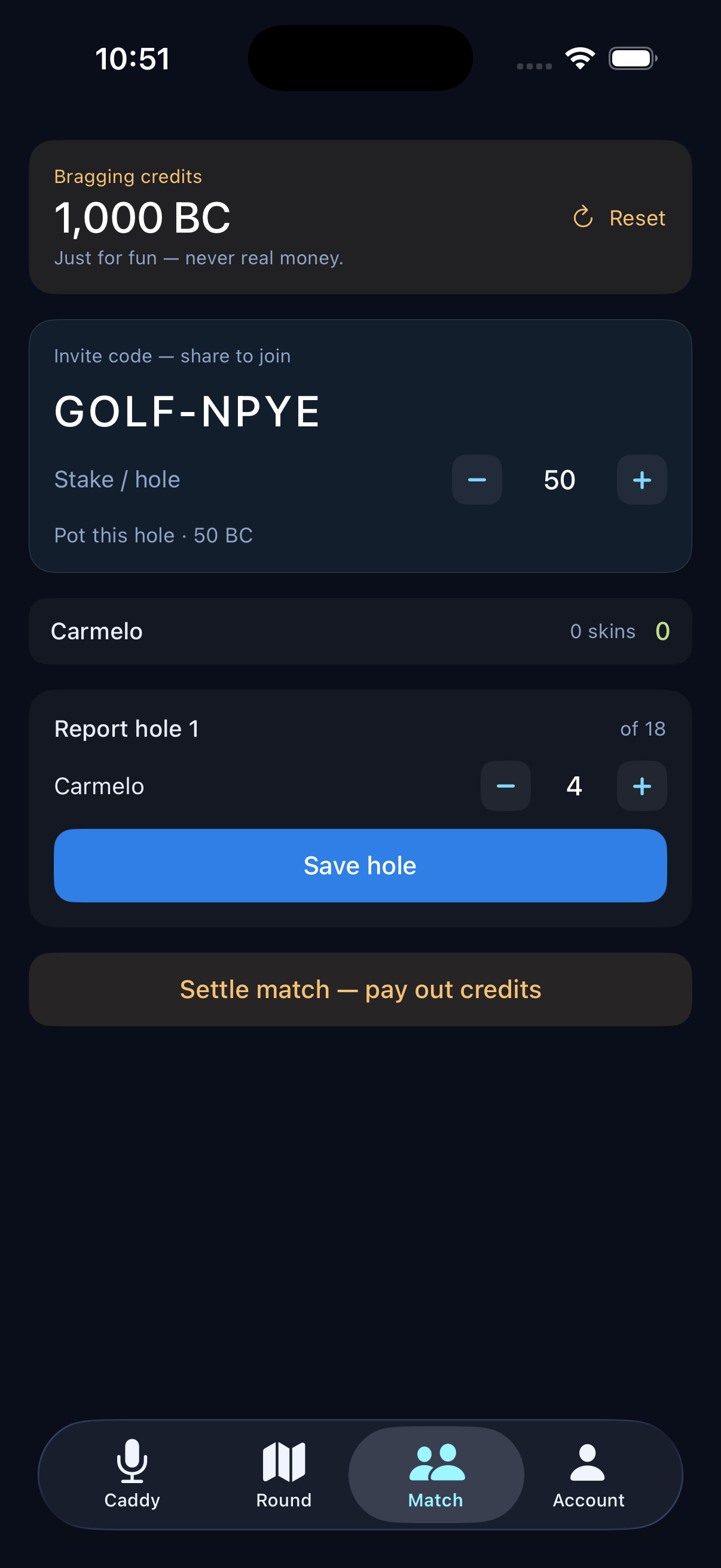
The Match screen
Give Jarvi a natural voice
Jarvi sounds good out of the box, but a downloaded voice is noticeably more natural.
- In Settings → Jarvi's voice, tap "Download a natural voice."
- In iOS Settings → Accessibility → Spoken Content → Voices → English, download an Enhanced or Premium voice (e.g. Nathan or Evan).
- Come back to Settings → Jarvi's voice and pick it — tap to hear a sample.
Tips & troubleshooting
- No sound? Make sure your ringer/volume is up and the phone isn't on silent.
- Runs in the background — switch apps or pocket your phone; your round, score and GPS keep going until you actually close it.
- Coaches — get your students into the app for free. Email [email protected] and we'll set them up.
- Still stuck? Reach us at [email protected].